Table of Contents

While Shopify provides a standard field for product weight, specifying product dimensions such as Length, Width, and Height is not directly accommodated. However, savvy users can overcome this limitation through a workaround using Metafields.
Metafields enable users to add custom pieces of data to specific parts of their Shopify store, providing a flexible way to include additional information that isn't part of the standard Shopify fields.
In this blog, we'll explore how Metafields can be leveraged to add dimension data for both standalone products and products with variants.
To begin, it's crucial to distinguish between standalone products and products with variants within Shopify. Standalone products are individual items, each possessing its unique attributes and details. Conversely, products with variants serve as a way to consolidate related items under a single product listing, differing in attributes like size, colour, or material.
The necessity of setting up dimension data for products with variants separately arises due to the varying dimensions associated with each variant, whether it be packaging differences or diverse product sizes. By tailoring dimension data to each variant, you ensure that customers receive precise and specific information about the dimensions of the variant they are interested in.

In this section, we'll guide you through the process of adding metafields to your Shopify store, allowing you to incorporate dimension fields for both standalone products and products with variants.

To add dimension fields for products using Metafields, follow these steps:
1️⃣ Access Metafield Definitions
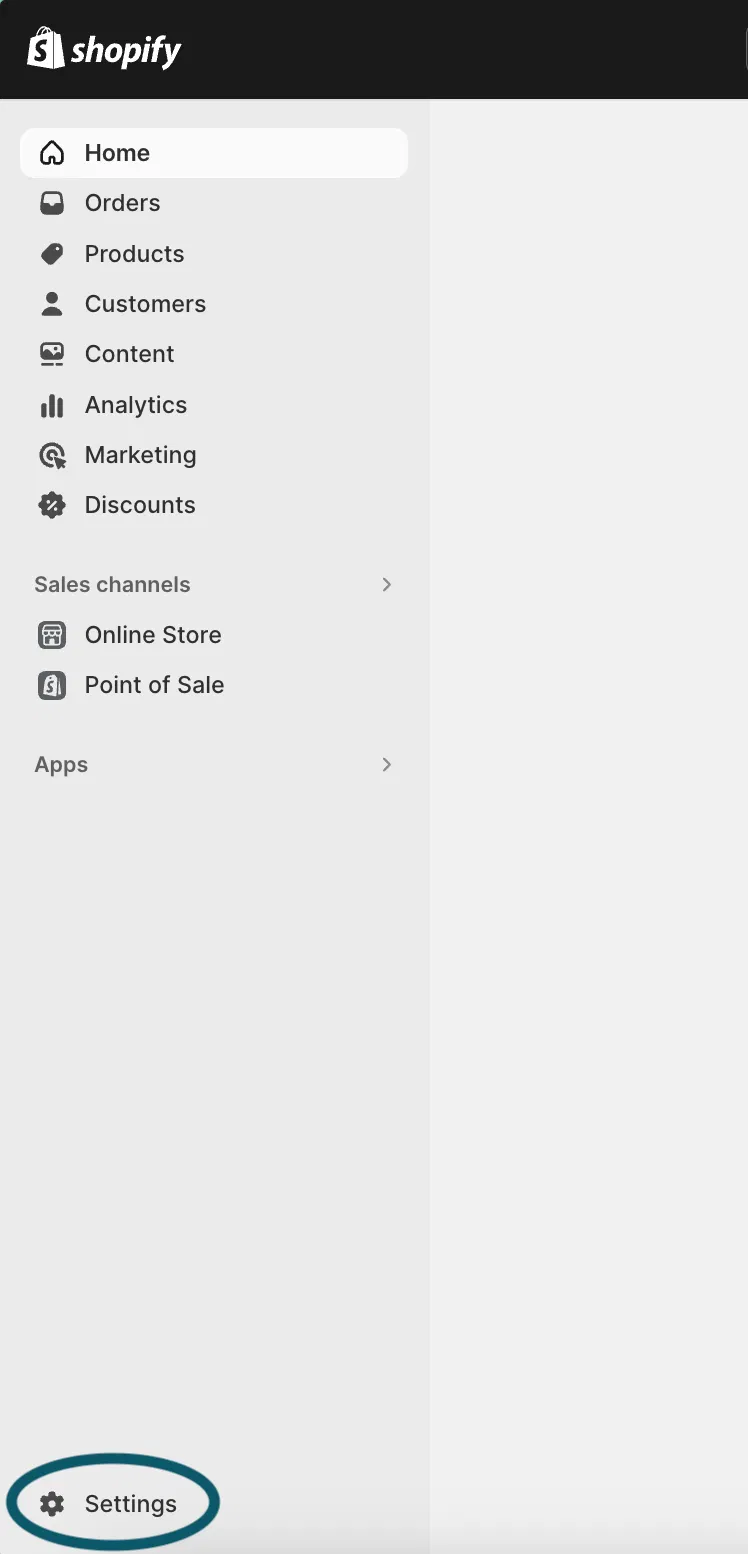
- Go to "Settings" in the Shopify admin panel
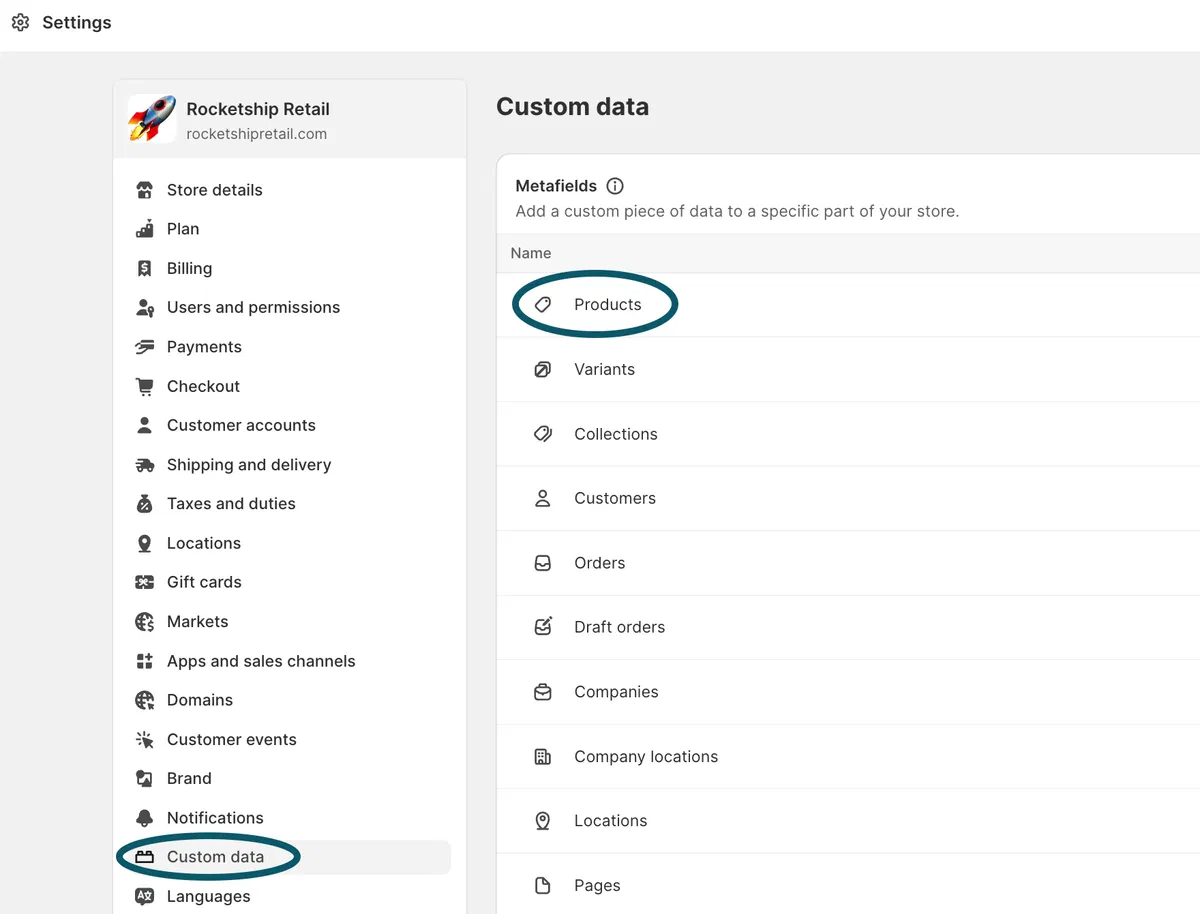
- Select "Custom Data" and then click on "Products"
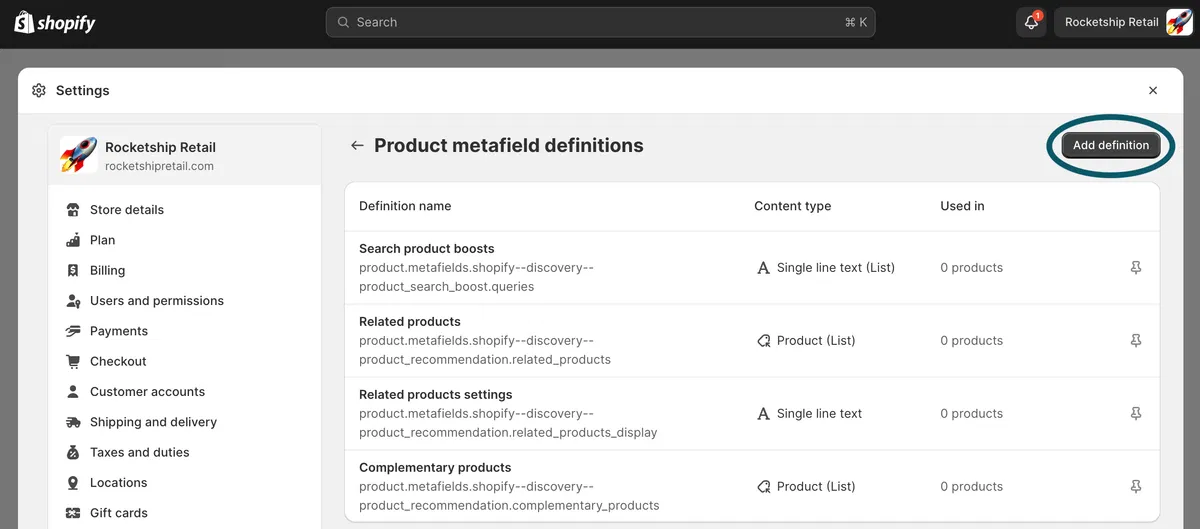
2️⃣ Proceed to create a new product metafield definition by clicking "Add definition"
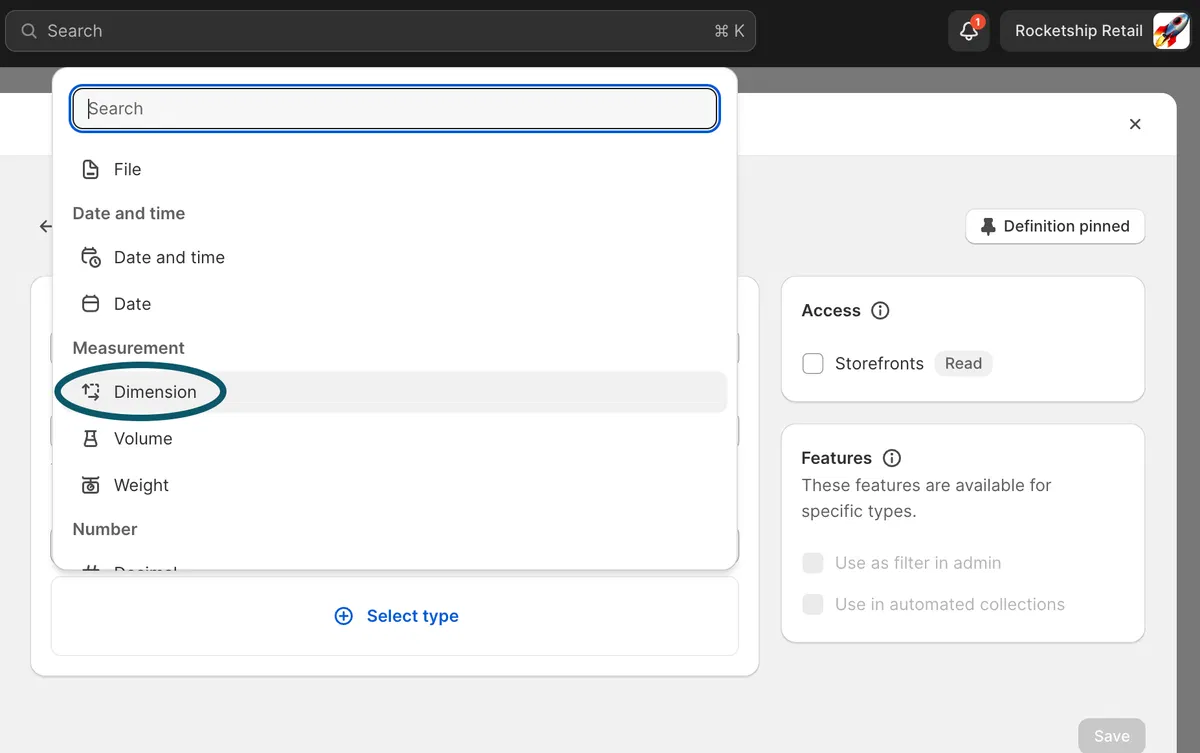
3️⃣ Choose the type of metafield you want to create – in this case, we're creating a measurement metafield for product dimensions, so select "Dimension" from the drop-down menu.
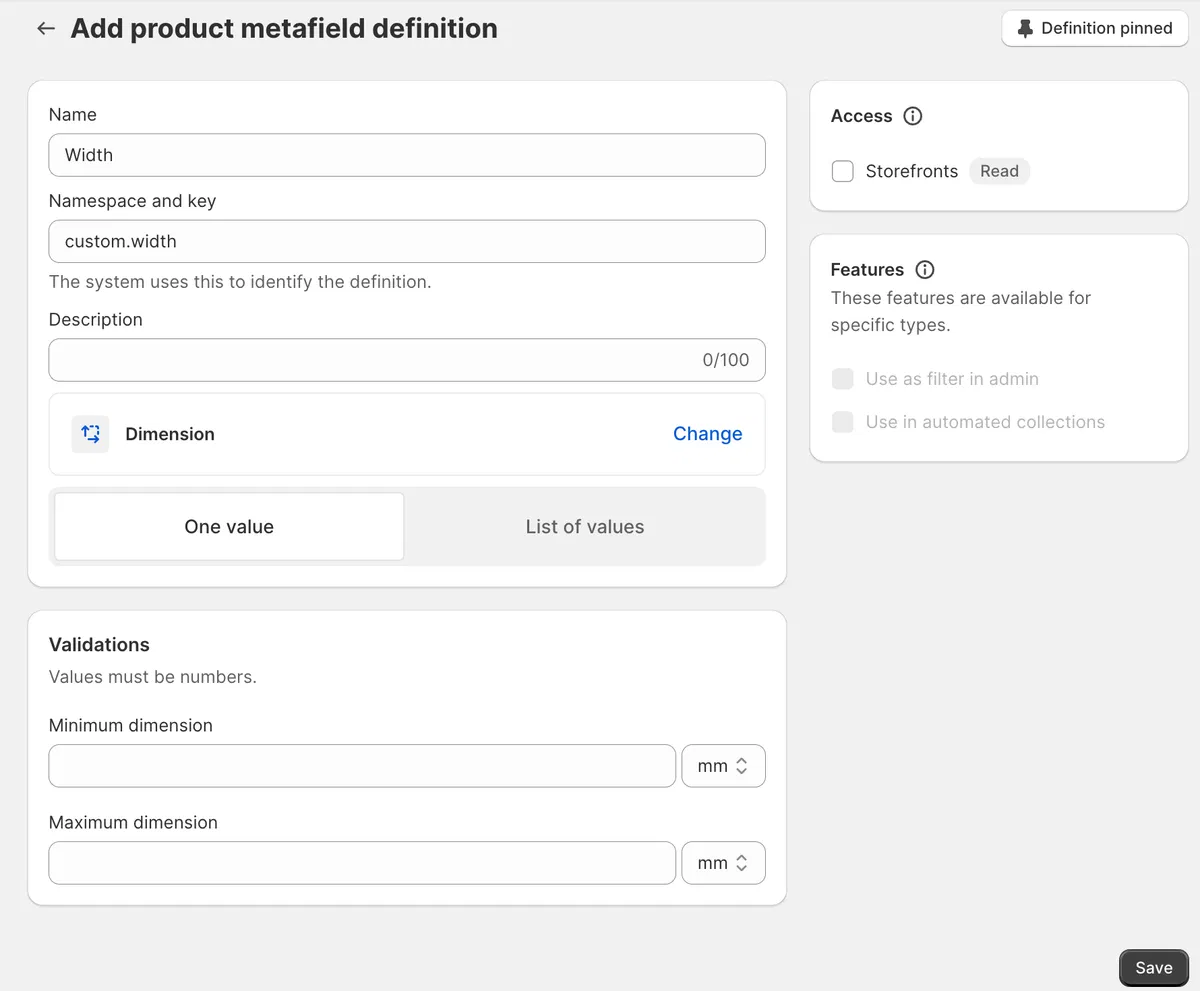
4️⃣ Give a label to the metafield, such as "Width," and click "Save."
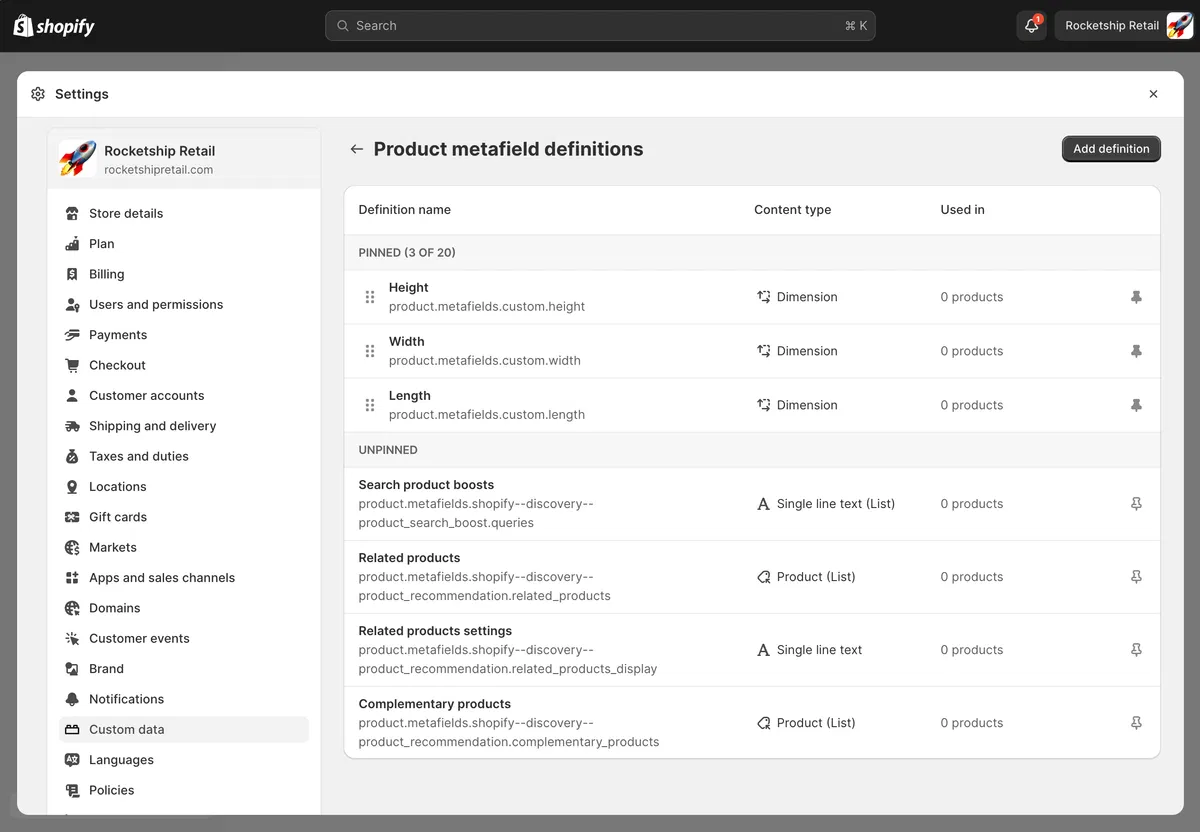
5️⃣ Repeat the above steps for each dimension you want to include (Length, Width, Height).

To add dimension fields for product variants:
1️⃣ Access Variant Metafield Definitions
- Go to "Settings" in the Shopify admin panel
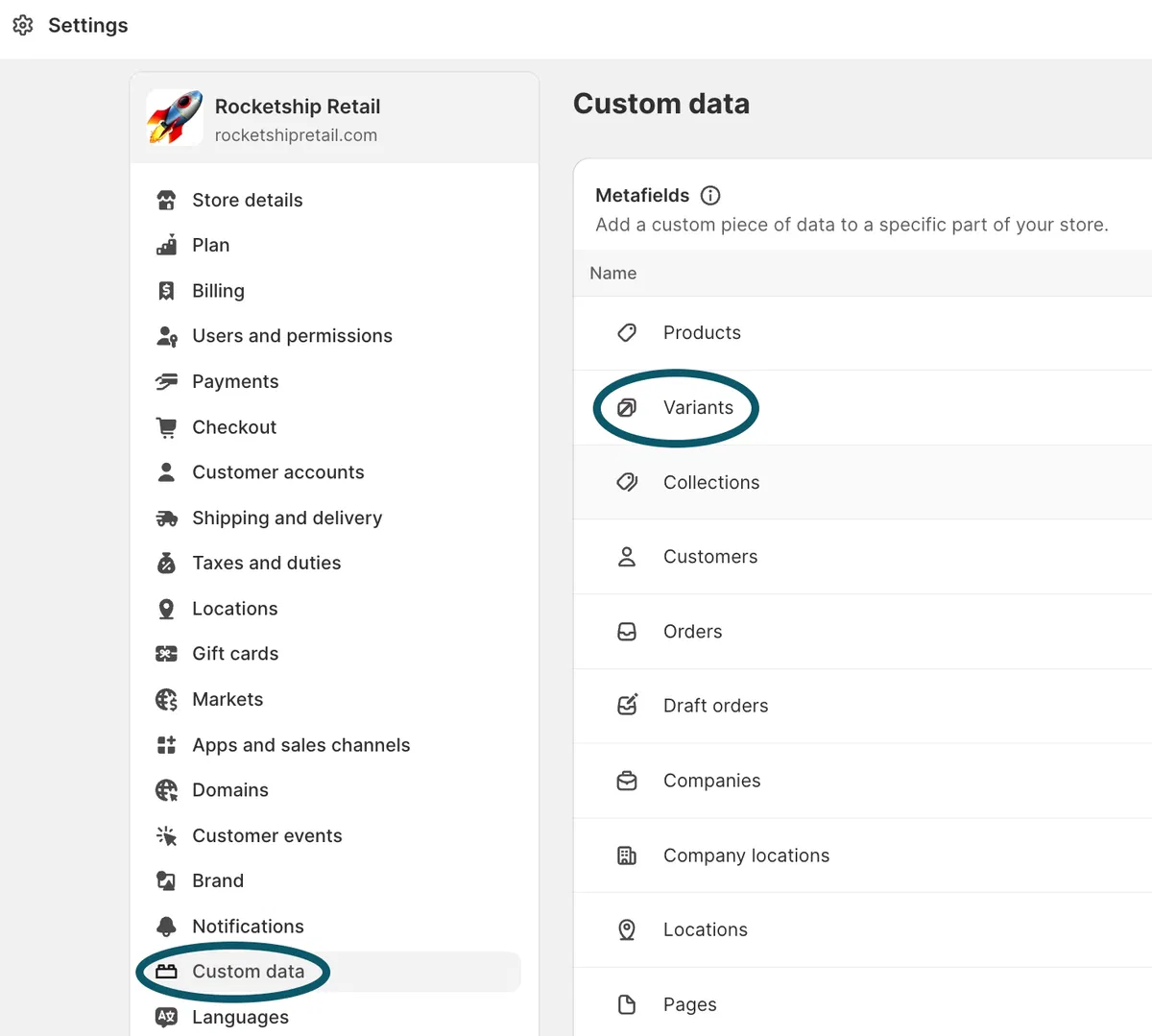
- Navigate to "Custom Data" and select "Variants"
2️⃣ Click on "Add definition" to create a new variant metafield definition
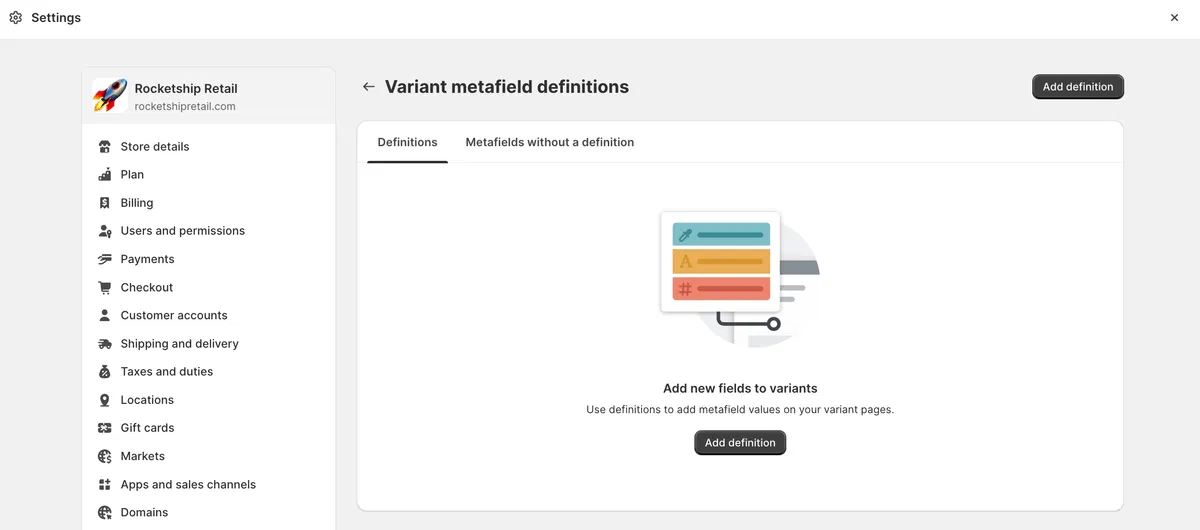
3️⃣ Provide a descriptive label for the metafield, such as "Variant Dimensions"
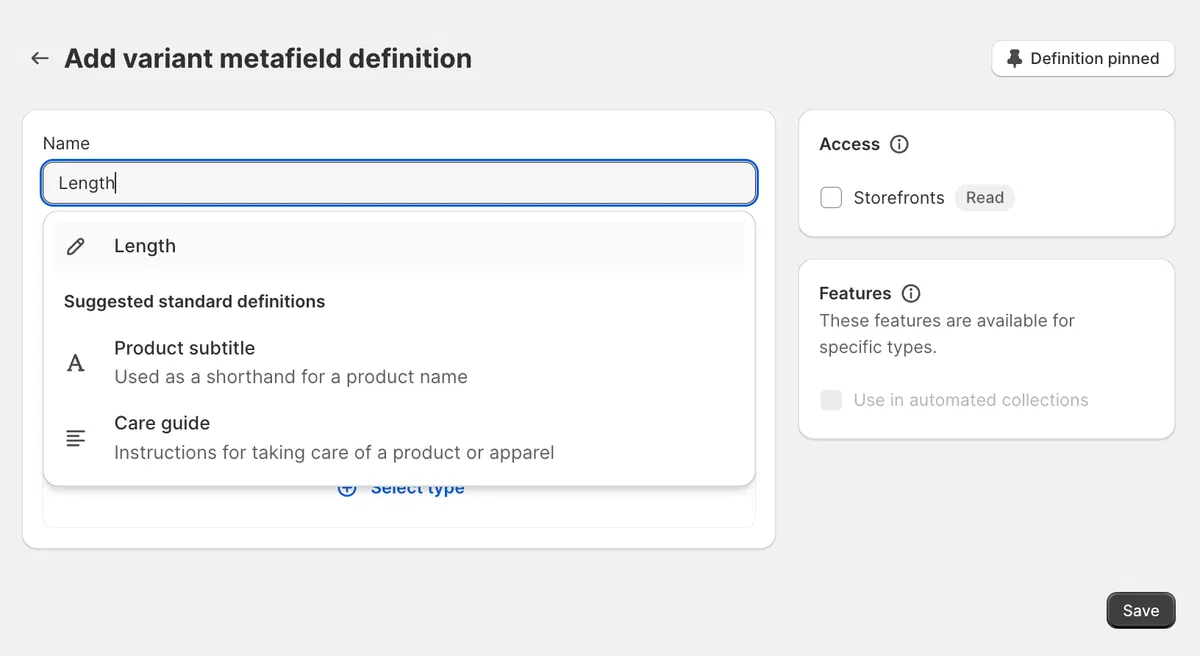
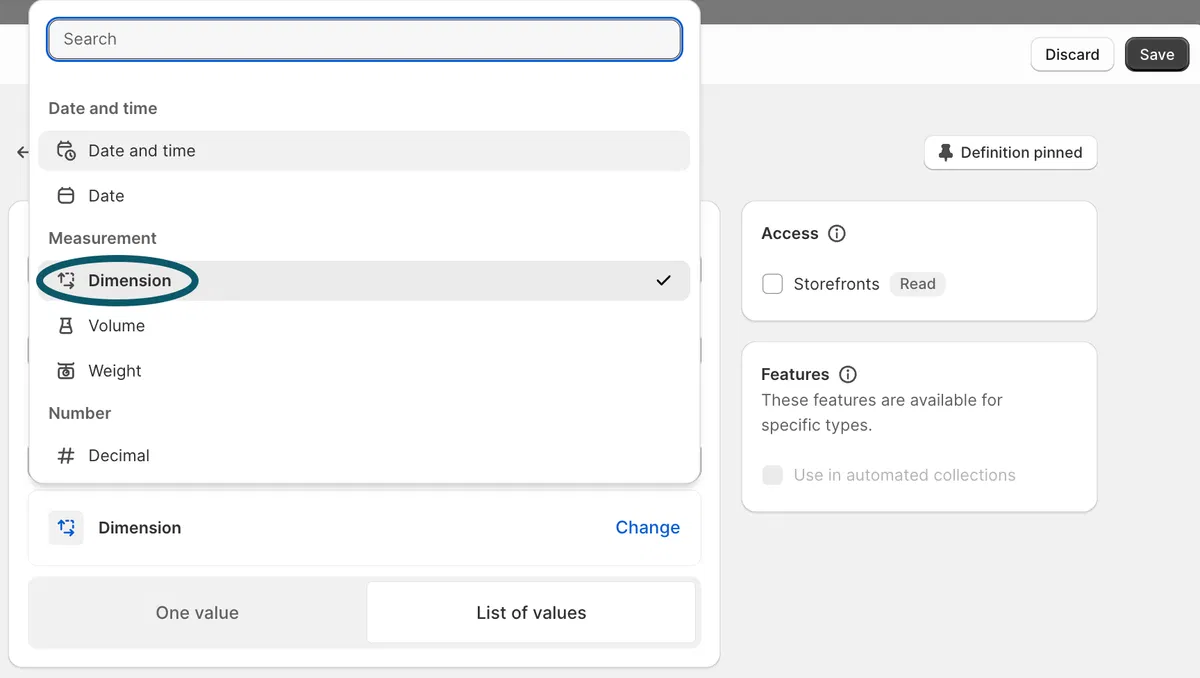
4️⃣ Choose "Dimension" as the field type from the drop-down menu, and click "Save"
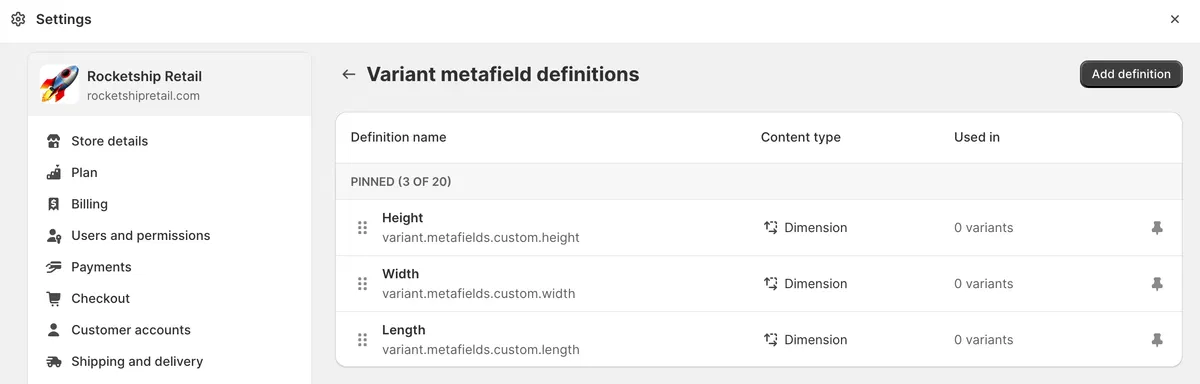
5️⃣ Follow the same process for each dimension you want to include (Length, Width, Height) for the variants

When it comes to entering dimension data for standalone products versus products with variants, it's important to understand the nuanced approach needed for each.
For standalone products, the process is straightforward. After creating dimension metafield definitions for products, you can input the relevant dimension data directly into the product's Metafield section.

1️⃣ Go to "Products" in the Shopify admin panel
2️⃣ Select a product you want to add dimension data to
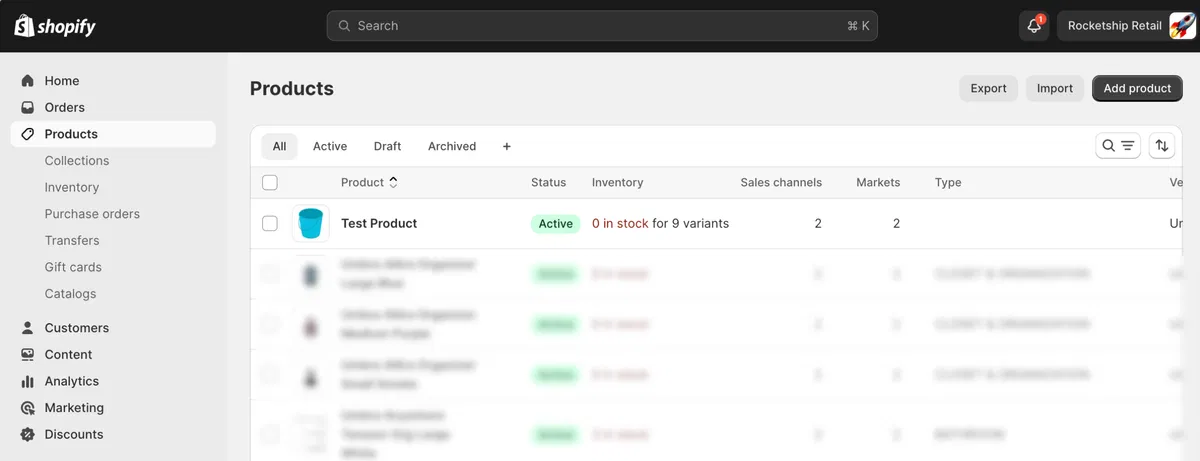
3️⃣ Navigate to the "Metafields" section to input the dimension data for the product
4️⃣ After entering the dimension data, hit "Save”
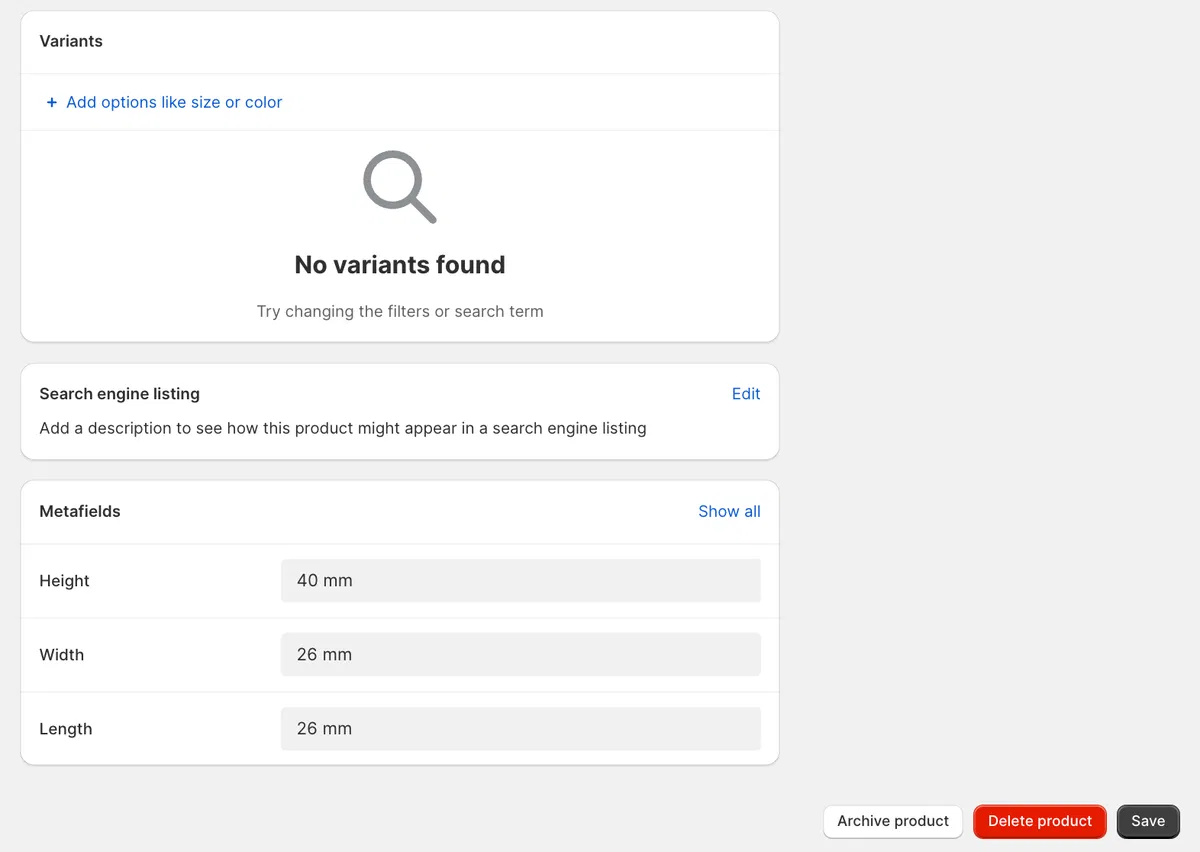
On the other hand, when dealing with products that have variants, you'll need to extend the same process to each variant individually. The variant dimension data should be inputted in a variant-specific metafield, distinct from the metafield associated with the product itself. This ensures that the product's overall information is distinct from the individual specifications for each variant, maintaining precision and clarity in your product catalog.

1️⃣ Go to the "Products" section and select a product with variants that you want to add dimension data to
2️⃣ Click "Edit" next to the variant you want to add dimension data for
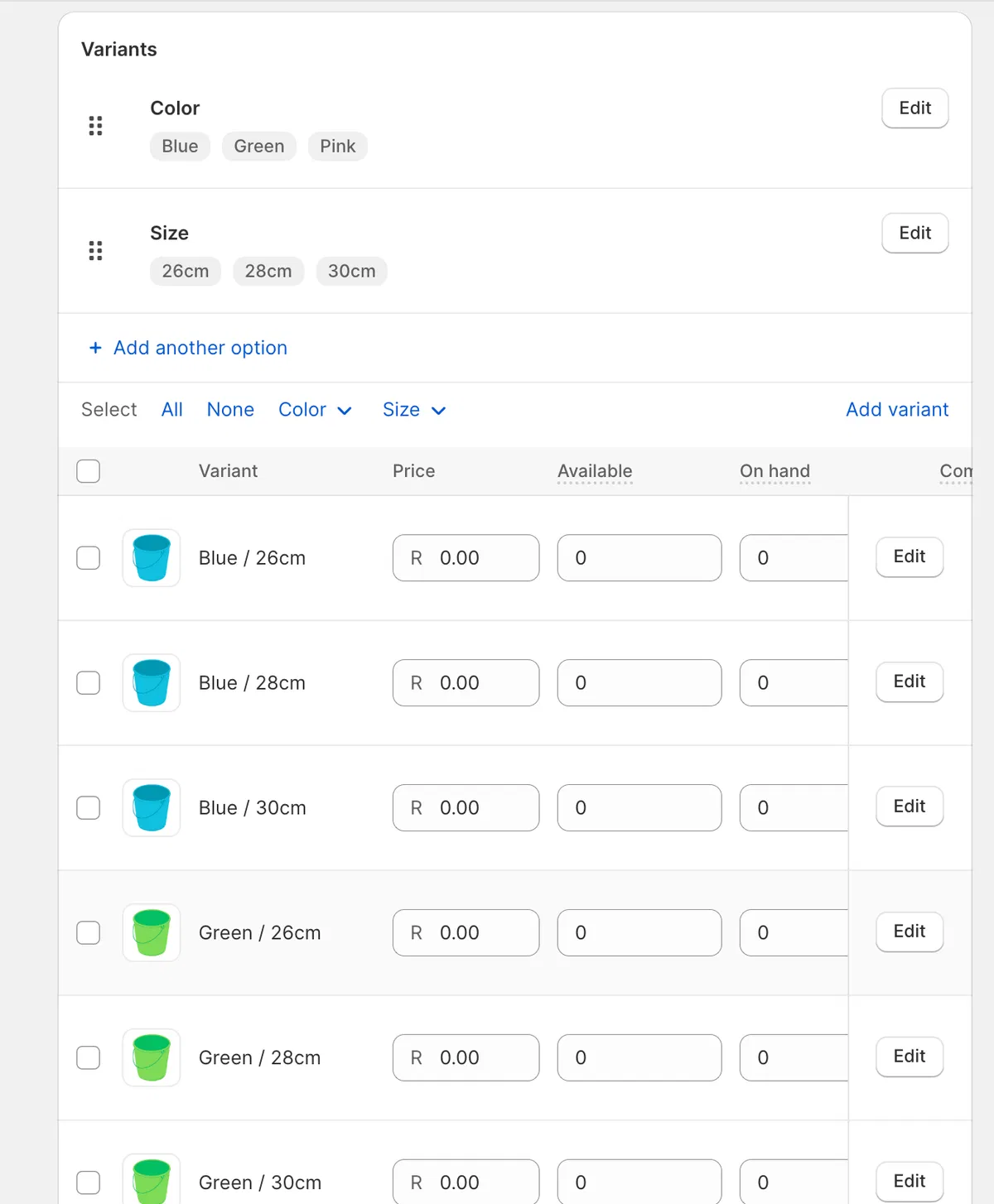
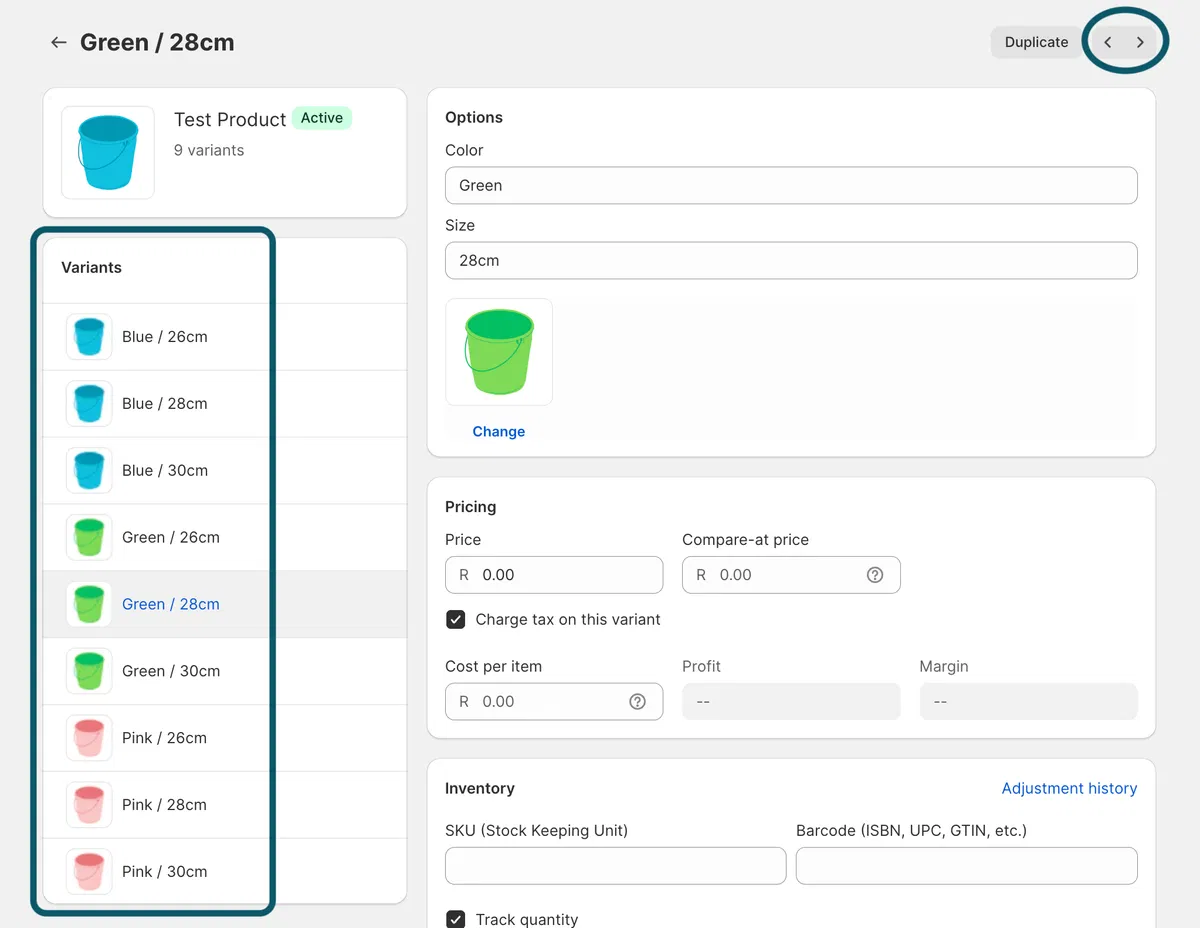
This will open up a window showing the product you have selected, as well as all the variants of the product
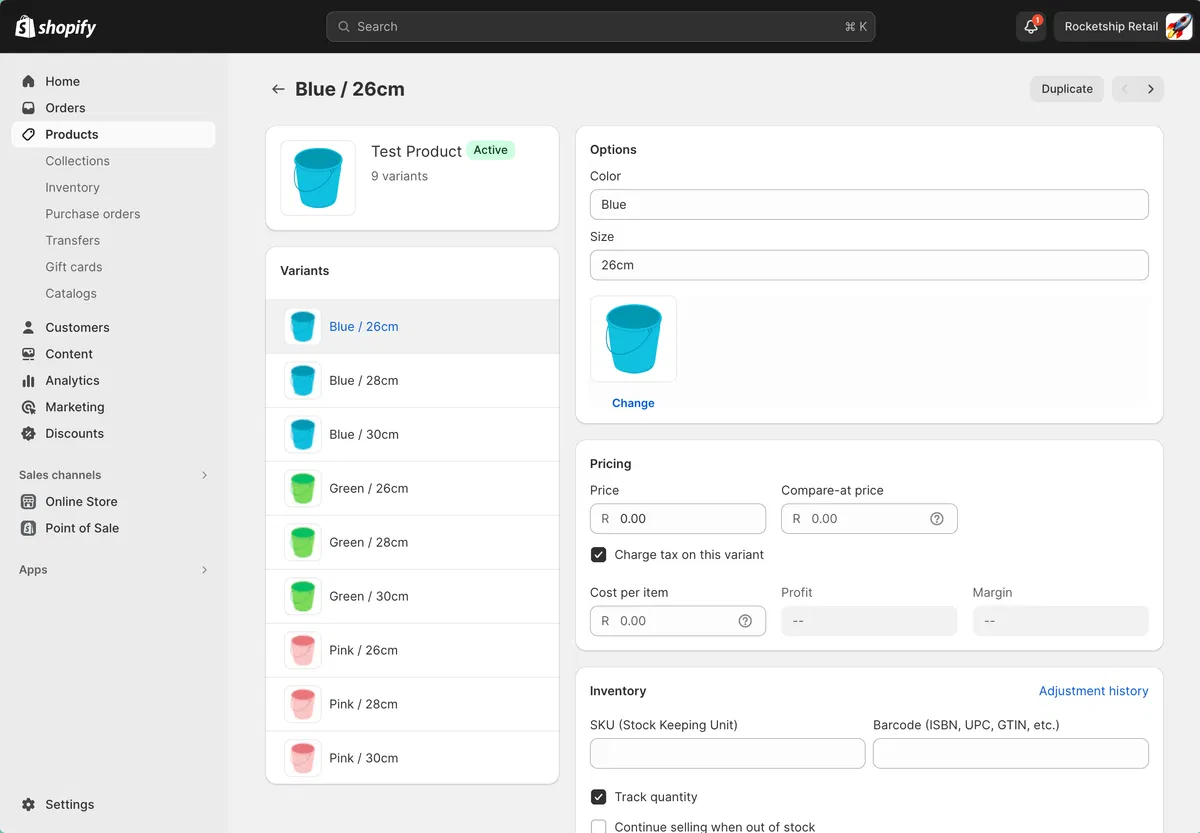
3️⃣ Navigate to the "Metafields" section and input the respective dimension data for the variant
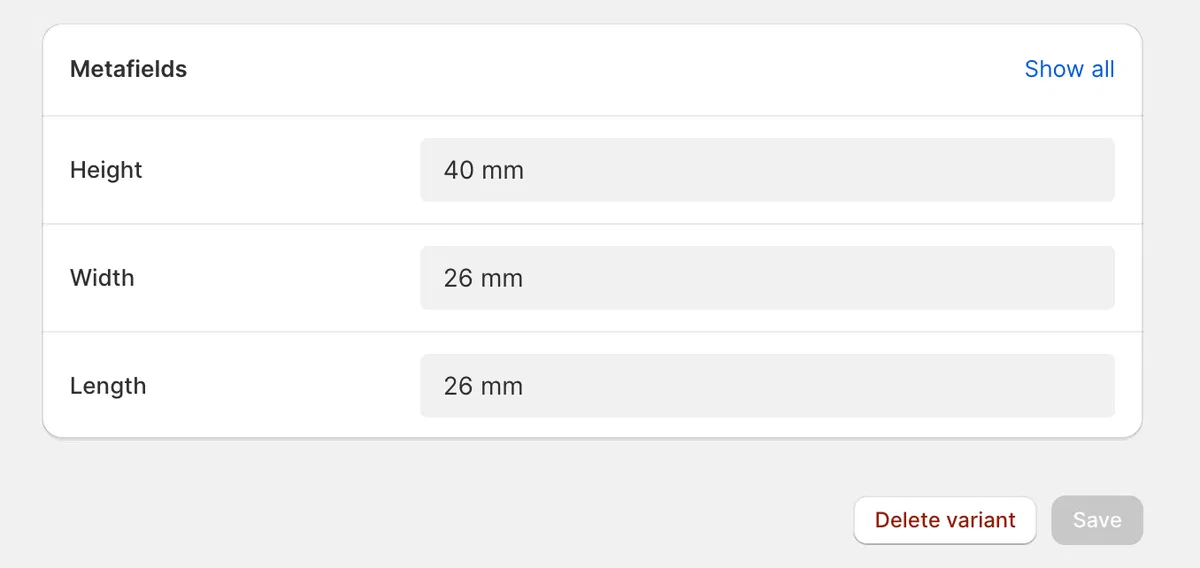
4️⃣ Hit "Save" to apply the changes
5️⃣ Proceed to the next variant of the product to add dimensions for, using the left “Variants” sidebar or the arrows on the top right corner.
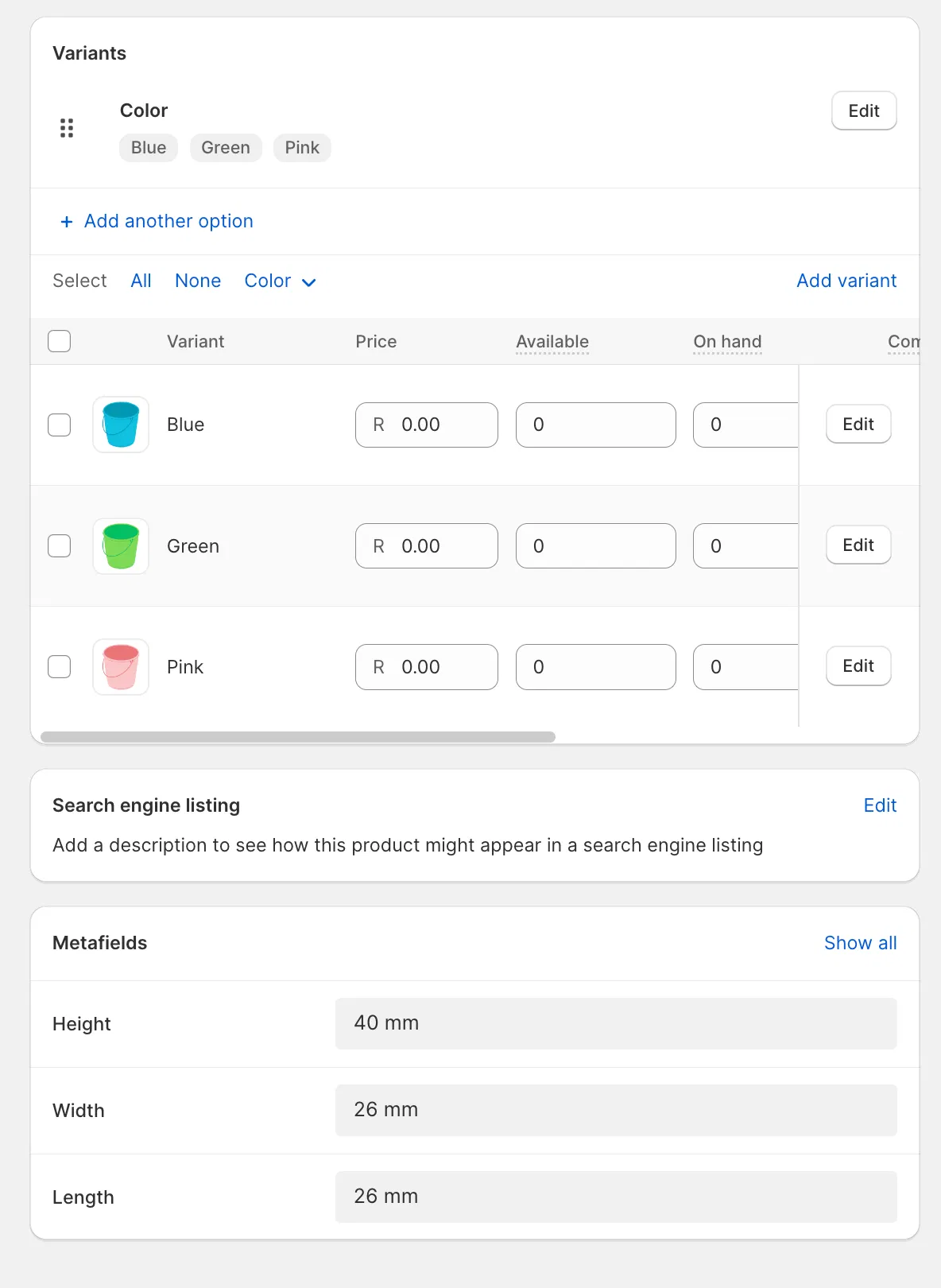
If the variants differ in attributes, but the size or packaging dimensions does not differ, the “Product Metafield” section can be used for entering dimensions instead of adding dimension data for each variant in the “Variant Metafield” section
By leveraging Shopify's Metafields and following this easy-to-follow guide, you can now effortlessly add dimensions to your products.
Now, you might be concerned about the prospect of having to repeat this process for each e-Commerce platform you wish to sell on. Fear not! In the next section, we will delve into a seamless process of syncing these product dimension details from Shopify to other e-commerce platforms.

For businesses using Shopify as their primary e-Commerce platform, managing product attributes such as dimensions is a crucial aspect of presenting products accurately to customers. However, many businesses opt to expand their reach by selling on additional online marketplaces like Takealot, Makro, Loot, Leroy Merlin, and more. Effectively managing product data, including dimensions, across these various platforms can be a daunting task.

Enter Wherehouse Integration: Bridging the Gap
Wherehouse is a powerful integration software that acts as a bridge between your Shopify store and multiple online marketplaces. It allows you to seamlessly sync your product information, including attributes like dimensions, across different platforms from a centralised location, like Shopify.
How Wherehouse Works
- Pulling Data from Shopify:
- Wherehouse effortlessly pull product attributes, including dimensions, from your Shopify store. This ensures that the most up-to-date and accurate product information is retrieved. This also eliminates the need to manually update each platform separately.
- Pushing Data to Multiple Platforms:
- Wherehouse then push the product attributes you've added or updated in Shopify to your online marketplaces. This ensures consistency and accuracy across all platforms.
- Real-Time Updates:
- Any changes made to product attributes in Shopify are reflected on the integrated platforms through Wherehouse. This real-time sync keeps your product data consistent and up to date.
- Efficiency and Time Savings: Wherehouse simplifies the process of managing product attributes across multiple platforms, saving you valuable time and effort.
- Accurate and Consistent Product Information: By pulling data directly from Shopify and pushing it to various platforms, you ensure that your product information, including dimensions, is always accurate and consistent.
- Scalability: As your business expands to more platforms, Wherehouse allows for seamless scaling, enabling you to manage product data in a central location.
Benefits of Using Wherehouse
In conclusion, utilising Wherehouse integration alongside Shopify empowers you to efficiently manage product attributes like dimensions and more across multiple online marketplaces, ensuring a streamlined selling experience. Stay ahead in the e-commerce game by effortlessly managing your product data across all your selling platforms.
Written by